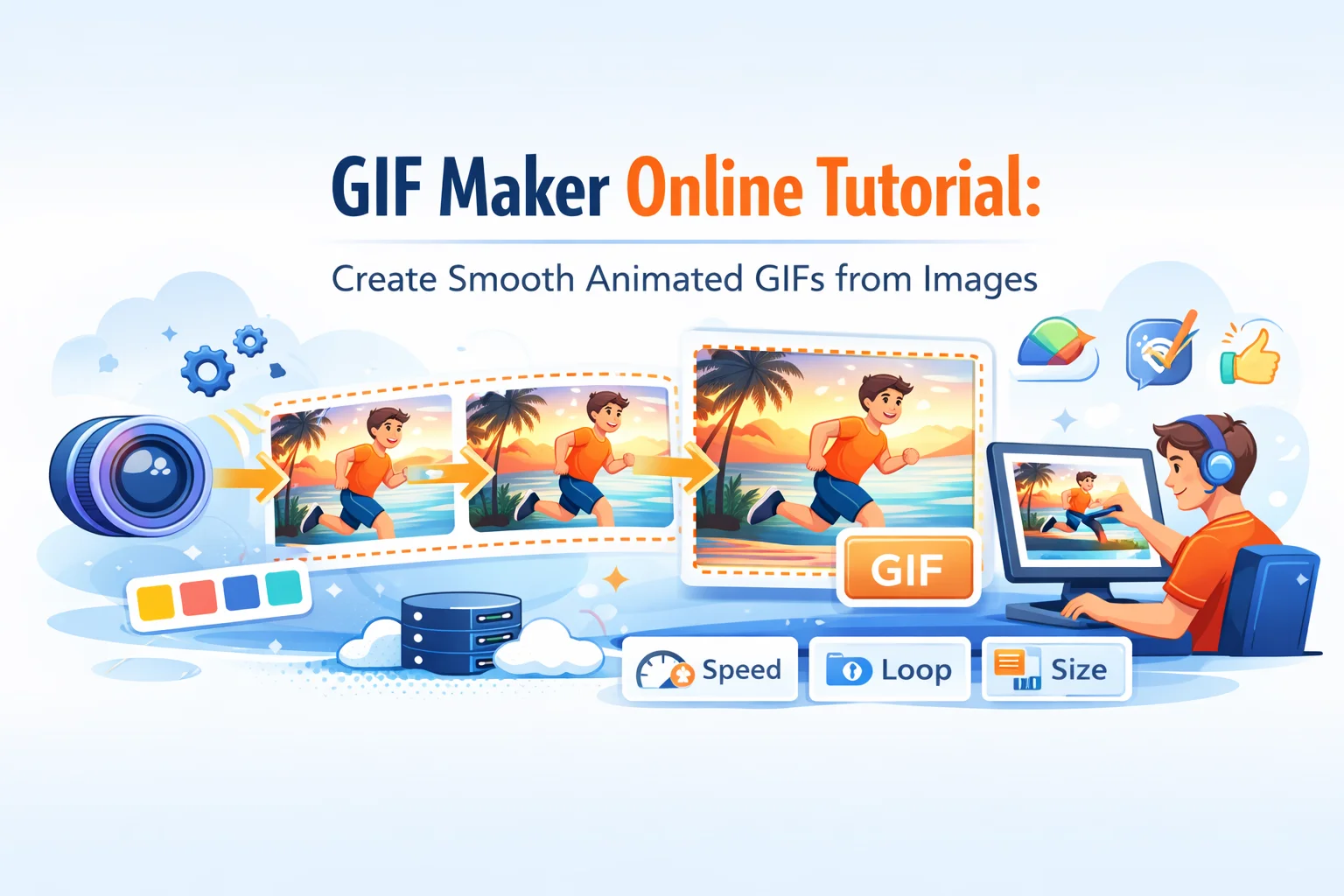
Animated GIFs have become an essential part of digital communication, from social media reactions to explainer animations. Creating high-quality GIFs was once a complex process requiring specialized software, but modern online tools have made it accessible to everyone.
This comprehensive tutorial will guide you through creating stunning animated GIFs using online tools, covering everything from video conversion to image-based animations.
GIF Creation Basics
GIFs (Graphics Interchange Format) are animated images that cycle through a sequence of frames. Understanding the fundamentals will help you create better animations.
Key GIF Components
- Frames: Individual images that make up the animation
- Frame Rate: How quickly frames change (typically 10-30 FPS)
- Loop: Whether the animation repeats continuously
- Color Palette: Limited to 256 colors per frame
Converting Video to GIF
Our dedicated video to GIF converter makes this process simple - just upload a video, select the time range, and export as GIF.
Step-by-Step Video Conversion
- Select Your Video: Choose a video file (MP4, MOV, AVI, etc.)
- Choose Time Range: Select the specific segment you want to convert
- Set Frame Rate: 10-15 FPS works well for most GIFs
- Adjust Quality: Balance file size with visual quality
- Preview & Export: Review the animation before final export
Video Selection Tips
- Choose videos with clear, high-contrast action
- Short clips (3-10 seconds) work best
- Avoid videos with complex backgrounds or fast motion
- Consider aspect ratio for your intended use
Creating GIFs from Images
Image Sequence Method
Create smooth animations by uploading a series of images:
- Use 10-30 images for fluid motion
- Maintain consistent dimensions and quality
- Consider the story or action you want to convey
- Plan your frame sequence for logical flow
Types of Image-Based GIFs
- Cinemagraphs: Subtle motion in otherwise static scenes
- Text Animations: Moving text or changing messages
- Icon Animations: Animated logos or interface elements
- Reaction GIFs: Expressive facial expressions or gestures - or create memes for maximum impact
GIF Optimization Techniques
Large GIFs slow down pages and frustrate users. Use our GIF optimizer to reduce file size without visible quality loss, or the GIF editor to crop, resize, and trim frames.
File Size Optimization
- Reduce Dimensions: Smaller images load faster
- Limit Colors: Use color optimization to reduce palette size
- Frame Reduction: Remove unnecessary frames
- Quality Settings: Adjust compression levels
Performance Optimization
- Use appropriate frame rates for your content
- Optimize for the platform where it will be displayed
- Consider using WebP or MP4 alternatives for better compression
- Test loading times across different devices
Advanced Features & Effects
Timing Controls
- Variable Frame Rates: Different timing for different parts
- Pause Frames: Hold on important moments
- Loop Options: Control how animations repeat
Visual Effects
- Text Overlays: Add captions or branding
- Filters: Apply color effects or adjustments
- Transitions: Smooth transitions between frames
- Resize & Crop: Adjust dimensions and composition
Best Practices
Content Creation
- Plan your animation story before creating
- Use high-quality source material
- Consider your audience and platform
- Test animations on target devices
Technical Guidelines
- Keep file sizes under 5MB for web use
- Use appropriate dimensions for your platform
- Optimize color palettes when possible
- Consider accessibility (reduced motion preferences)
Platform-Specific Tips
- Social Media: Square or vertical formats work best
- Web: Consider loading times and user experience
- Email: Keep animations subtle and professional
- Mobile: Test on various screen sizes
Troubleshooting Common Issues
Quality Problems
- Pixelated Results: Use higher quality source material
- Color Banding: Increase color depth or use dithering
- Jerky Motion: Increase frame rate or add more frames
File Size Issues
- Too Large: Reduce dimensions, colors, or frame count
- Quality Loss: Find balance between size and quality
- Loading Slow: Optimize for web delivery
Frequently Asked Questions
What's the best way to create a GIF from a video?
Use a video-to-GIF converter that allows you to select specific time ranges, adjust frame rates, and control quality settings. Look for tools that let you preview the animation before final export.
How many images do I need to create a good GIF?
For smooth animations, use 10-30 images. Fewer images create choppy animations, while too many can make large file sizes. The ideal number depends on your animation's complexity and desired smoothness.
Why is my GIF file size so large?
Large GIFs result from high resolution, many frames, or complex color palettes. Reduce dimensions, limit frames, use fewer colors, or optimize with compression tools to decrease file size.
Can I add text or effects to my GIF?
Yes, many GIF creation tools allow you to add text overlays, apply filters, adjust timing, and include basic effects. For advanced editing, use image editing software before creating the GIF.
What's the ideal GIF size for web use?
For web use, aim for GIFs under 5MB. Smaller is better - target 1-2MB for most applications. Consider your audience's internet speed and the platform's limitations.
Final Thoughts
Creating animated GIFs has never been easier thanks to modern online tools. Whether you're converting videos or building animations from scratch, the key is understanding your audience and platform requirements while maintaining optimal file sizes.
Start creating your own GIFs with our online GIF maker and bring your ideas to life with animation.